




Controlling a project’s time budget is crucial to the success of any business. With Teambook, you have a major ally in controlling this essential aspect of project management.
In this tutorial article, we’ll show you how to avoid time overruns and optimise the management of your resources.
1. Define the Time budget for each project.
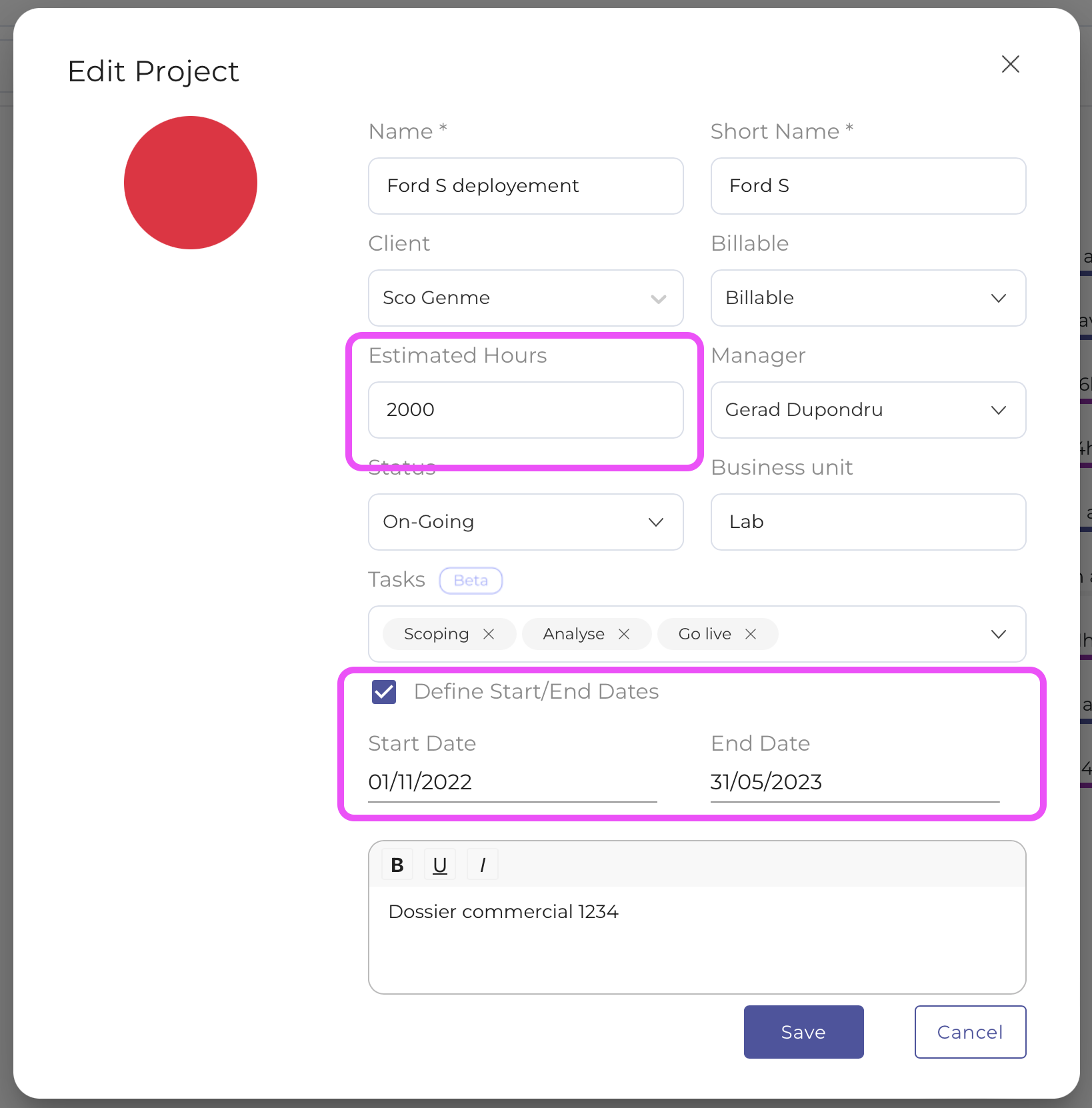
The first step is to enter the time budget allocated to each project into Teambook. This estimated time is the cornerstone of your planning. It represents the total amount of time you plan to devote to the project. By clearly defining this budget from the outset, you establish an essential frame of reference for subsequent project management.
2. Using the progress bar when planning.
When you schedule tasks in Teambook, a progress bar is displayed. This shows the amount of time already planned compared with the estimated time. This visual tool is extremely useful for understanding at a glance how much time is “still available”. This helps to avoid overloading the project in the early planning stages.
3. Real time entry and progress update.
At the end of the period, it is crucial that team members enter the actual time spent on projects. This information complements the initial progress bar. This update enables a direct comparison to be made between the time planned and the time actually spent on the project, providing a clear view of actual progress compared with forecasts.
4. Detailed view in the Project menu.
Teambook’s Project menu provides a detailed view of the project’s progress. You’ll find a bar showing both the time allocated (for which slots are planned) and the time actually spent, compared with the time initially estimated. A colour code makes it easy to identify any overruns, enabling you to take swift action to rectify the situation.

5. Comparison tools on the Dashboard
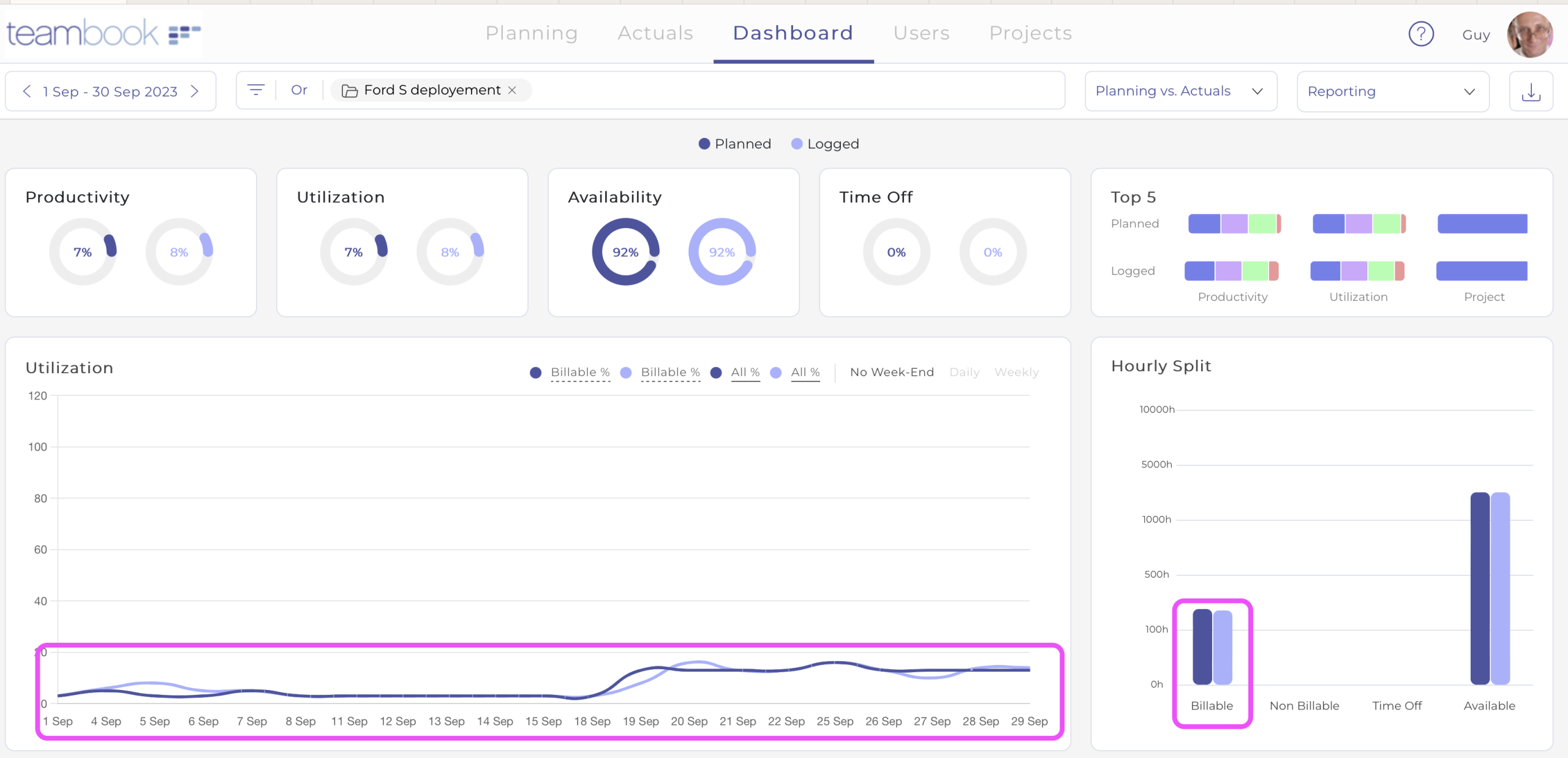
Teambook’s dashboard offers tools for comparing “budget versus headcount”. These graphical tools are ideal for visualising any overruns or the “residual budget”. They offer an immediate global perspective on the financial health of the project in terms of time.
6. Management of additional projects and Scope changes.
Finally, it is possible to create additional projects in Teambook, for example in the event of budget extensions or changes to the scope of the project. We recommend using a meaningful syntax for the “project code” field to facilitate tracking and the distinction between different projects or phases of the same project.
Conclusion
By following these steps with Teambook, you will have complete control over the time budget for your projects, enabling you to avoid overruns and maximise the efficiency of your project management.
Try Teambook today to make your resource management even more efficient. It’s free for up to 10 projects.